Jellyfin 10.11 plugin
Fix a drifting subtitle without leaving Jellyfin
Subtitle Sync installs into your Jellyfin server, listens to where speech actually happens in a film or episode, and writes a corrected copy of the subtitle track beside the media. No downloading the video, no hunting for a better release, no editing timestamps by hand.
The same algorithm as the browser version of this site, running inside your dashboard against the files you already have.
What it does
SRT timestamps are plain wall-clock times and carry no framerate, so a subtitle authored against a different release does not just sit at a fixed offset: it drifts further out the deeper into the episode you get. Subtitle Sync corrects both.
- 1
The server decodes the audio
Jellyfin's own ffmpeg turns the audio track you pick into 16 kHz mono PCM and streams it to your browser. The video is never uploaded anywhere.
- 2
Your browser finds the speech
A WebAssembly build of WebRTC VAD marks every 30 ms frame as speech or silence, producing a picture of when people are talking.
- 3
It matches the subtitles against that
Cross-correlation over a set of candidate framerate ratios picks the ratio and offset that line the cues up with the speech.
- 4
You save the corrected track
The result is written next to the media file and Jellyfin re-scans the item, so the new track shows up in the player within seconds.
The heavy lifting happens in your browser, not on the server. A NAS with a modest CPU only has to decode audio.
Requirements
- Jellyfin 10.11 or newer
- The plugin targets the 10.11 plugin API and runs on
net9.0, which is what 10.11 ships. There is no upper bound: the manifest declares 10.11 as a minimum, so newer servers are offered the plugin too. It will not load on 10.10 or earlier. - An administrator account
- In principle the API splits permissions: analysing a track needs the Subtitle Management permission and saving into a library needs an administrator. In practice the 10.11 web client puts every plugin page behind an admin-level route guard, so only an administrator can reach the page at all, whatever their subtitle permission is set to.
- Media that lives on disk, as a local file
- Saving writes a sibling file next to the video, so the library folder has to be a real, writable path on the server. Network streams and disc folders have nowhere to put the result.
- File Transformation (optional)
- Only needed for the Sync subtitlesentry inside the Subtitles menu on a detail page. Everything works without it from Dashboard > Plugins > Subtitle Sync. Jellyfin 10.11 has no plugin dependency mechanism, so we cannot install it for you - see below.
Install
1. Add the repository (recommended)
In your Jellyfin dashboard, go to Plugins > Repositories, add a repository with any name you like, and paste this URL:
https://subtitlesync.sircen.dev/jellyfin/manifest.json
Then open Plugins > Catalogue, find Subtitle Sync under Subtitles, and install it. Restart Jellyfin: it only scans for plugins at startup, so the restart is not optional. The dashboard should then list Subtitle Sync as Active. Installing from the repository is also what makes future versions show up as updates.
2. Or install the zip by hand
If your server cannot reach this site, download subtitle-sync_<version>.zip from the GitHub releases page, create a folder for it inside your Jellyfin data directory under plugins/, and extract the zip contents straight into that folder - the assemblies and meta.json sit at the zip root with no wrapping directory. Restart Jellyfin afterwards. A hand-installed copy will not receive updates automatically.
3. Optional: File Transformation, for the menu item
The Sync subtitlesentry in a film or episode's Subtitles menu is added by injecting a small script into the web client, which needs the third-party File Transformation plugin. Jellyfin 10.11 has no way for one plugin to require another, so you have to add its repository yourself:
https://www.iamparadox.dev/jellyfin/plugins/manifest.json
Its plugin ID is 5e87cc92-571a-4d8d-8d98-d2d4147f9f90, which is worth checking against if you are not sure whether you already have it installed. This step is genuinely optional, and skipping it costs you one shortcut and nothing else.
Using it
There are two ways in.
The reliable path
Dashboard > Plugins > Subtitle Sync
Opens the plugin's settings page, which has a button through to the sync page. The sync page starts on a picker listing your most recently added items, with a search box. Nothing else is required for this to work.
The shortcut
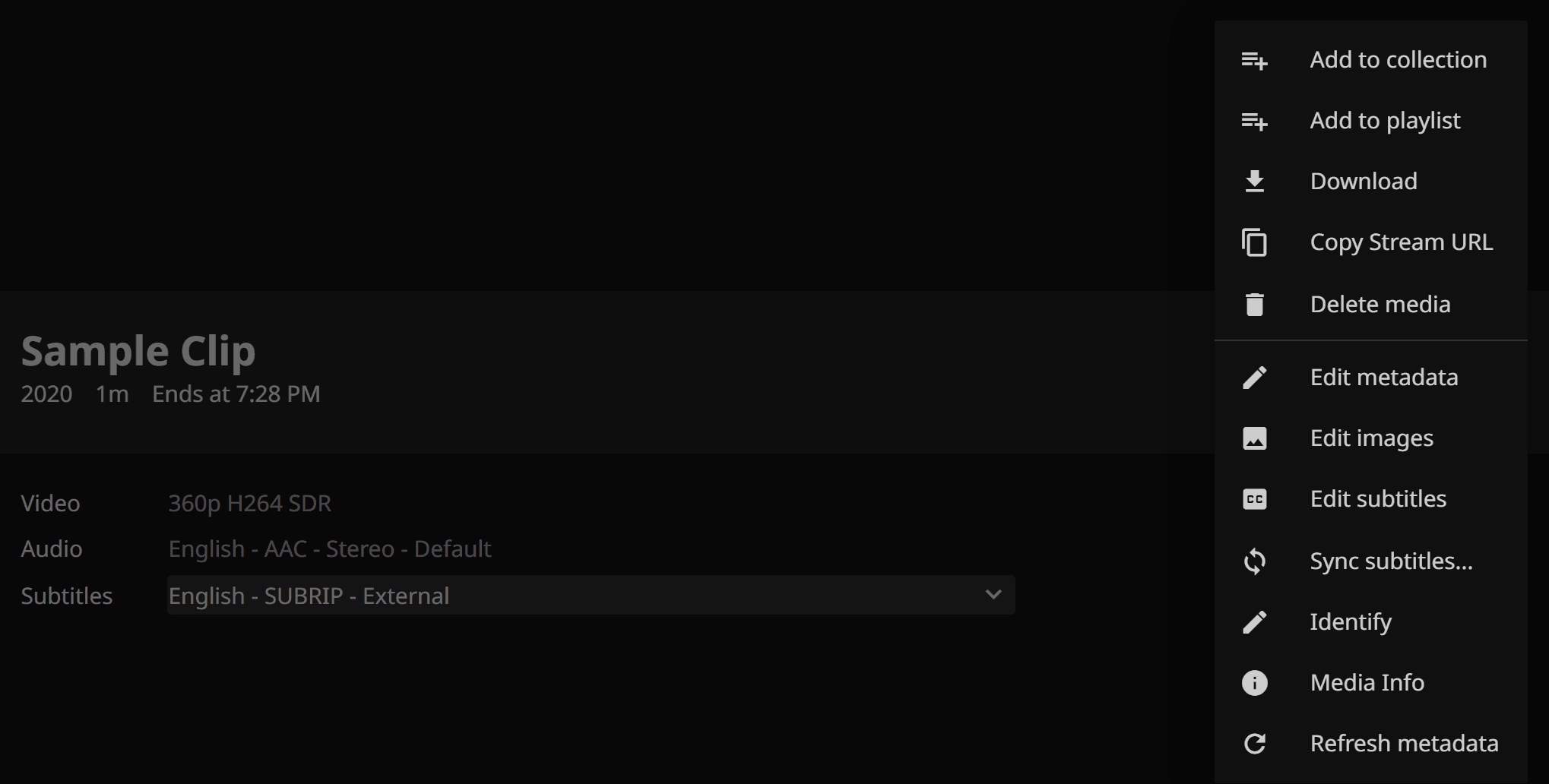
A film or episode > Subtitles > Sync subtitles
Jumps straight into the sync page with that item already loaded. Needs File Transformation, and is the part most likely to stop working after a Jellyfin upgrade.
Then
- 1
Pick the version, subtitle track and audio track
Any track Jellyfin lists works, external file or embedded. Tracks that can never be synced are shown disabled with the reason.
- 2
Press Sync subtitles and wait
The page reports what it is doing: reading the track, checking the signal cache, streaming audio, detecting speech, correlating. Cancel stops the server decoding immediately.
- 3
Read the result
You get the winning framerate ratio and offset, a score table for every candidate ratio, the first corrected cue as a preview, and any warnings verbatim. Warnings are the honest signal - read them before saving.
- 4
Nudge if it is close but not right
Adjust the offset or pick a different ratio by hand. The correction is re-applied instantly with no re-analysis and no further audio transfer.
- 5
Save to the library, or download the .srt
Save writes the file beside the media and queues a re-scan. Download gives you exactly the same file to place yourself.
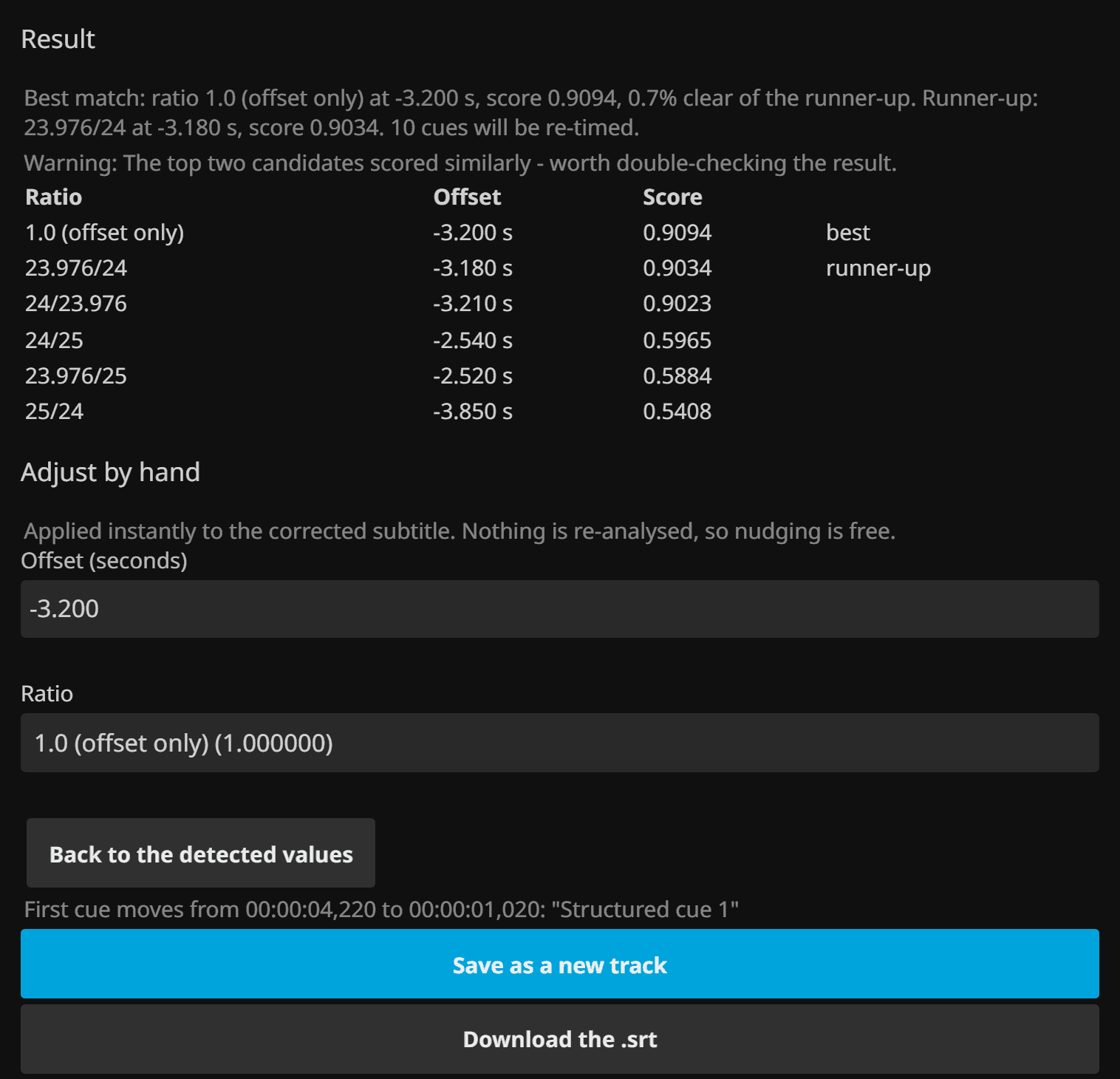
Structured Clip fixture, whose subtitle track is displaced by exactly -3.2 s, and the page recovered -3.200 s. The warning is the page doing its job rather than a fault - two ratios landed within a percent of each other on a very short clip, and it says so instead of presenting the winner as certain.Where the file goes, and how to undo it
Saving writes a new file next to the video, named after it:
<video file name>.<language>.synced.srt
So Movie (2019).mkv gains Movie (2019).en.synced.srt, and it appears in the player's track picker as synced - English - SRT - External. If a file of that name already exists, a numbered suffix is added rather than replacing it.
The original is never touched. The subtitle you synced from is left exactly as it was, so undoing a sync is a matter of deleting the .synced.srt file. The one exception is the Overwrite the original subtitle filesetting on the plugin's configuration page, which is off by default. Turn it on only if you are comfortable with a destructive edit that has no undo.
What it will not do
None of these are bugs waiting to be fixed. Knowing them up front is cheaper than discovering them halfway through a season.
- The browser tab has to stay open
- The analysis runs in your browser, not on the server. Navigating away or closing the tab cancels the run, and the server stops decoding as soon as the connection closes.
- A first run transfers real bandwidth
- Decoded audio is roughly 115 MB per hour of runtime. Once the server has cached the speech signal for that file, later runs fetch about 45 KB per hour instead, so re-running with different settings or on a second track is nearly instant. Fine over a LAN, painful over a slow remote link.
- Image-based subtitles can never work
- PGS, VOBSUB and DVB tracks are sequences of pictures. There is no text to correlate against speech, and no conversion produces any. Those tracks are disabled in the picker rather than left to fail.
- One track at a time
- There is no batch mode and no season-wide sync. Each episode is its own run, deliberately: the correct offset differs per file, and a wrong answer applied silently across a season is worse than no answer.
- Styling is lost on non-SRT tracks
- An ASS or SSA track is converted to SRT, so positioning and styling do not survive. The timings are what get fixed. The page warns you before you start.
- The menu item is the fragile part
- File Transformation works by patching the server's startup path at runtime, so a Jellyfin server or web client update can stop the Sync subtitles entry appearing. The plugin itself is unaffected: the Dashboard route keeps working, which is why it is the one we call primary.
Troubleshooting
- There is no Sync subtitles entry in the Subtitles menu
- Check that File Transformation is installed and Active in Dashboard > Plugins, and that you restarted Jellyfin after installing either plugin. If it was working and stopped after an upgrade, that is the known fragility above rather than a broken install: go to Dashboard > Plugins > Subtitle Sync instead, which does the same job from a picker.
- Saving fails and says the folder is not writable
- The plugin writes into the same folder as the video, so the account Jellyfin runs as needs write permission there. In Docker this is usually a library mounted read-only: change the volume to read-write and restart the container. Otherwise check the folder's ownership and permissions. Until then, use Download the .srt and copy the file into place yourself - it is byte for byte what the save would have written.
- Saving says it needs an administrator
- Analysing and saving are separate permissions, and only an administrator can write into a library. Your result is not lost: download it, or ask an administrator to run the save.
- The result looks wrong, or a warning says confidence is low
- Check the preview of the first corrected cue before saving, and compare the top two scores in the candidate table. If two ratios sit very close together the correct one may still have won, which is common on short items. If the answer is clearly off, try a different audio track (a commentary track will not match the dialogue), raise the maximum search offset if the drift is large, or nudge the offset by hand and check the preview again. A track that is a translation of a different cut will not correlate no matter what you set.
- The saved file does not appear in the player
- A re-scan is queued automatically after a save, but if it could not be queued the track appears at the next library scan instead. Refresh the item's metadata from its detail page to force it.